Χρησιμοποιώντας το WinJS-Microsoft-Account-Bypass
το διάβασα εδώ.

Steps to Bypass Microsoft Account Setup
1. Start Windows 11 Setup
- Begin the Windows 11 Setup Process.
- Select your region and keyboard layout.
2. Stop at the Secondary Keyboard Layout Screen
- When you reach the Secondary Keyboard Layout screen, do not click Skip.
- If you accidentally skipped and reached the Network Setup Screen, don't stress. I have a guide in the troubleshooting section.
3. Open the Developer Console
- Press Ctrl + Shift + J to open the Developer Console.
- Your screen will go dark and will appear with a prompt (indicated by a > symbol) at the top left of the screen.
Note: If you can't open the console, troubleshooting steps are below.
4. Enter the Restart Command
- Type the following command exactly as shown:
WinJS.Application.restart("ms-cxh://LOCALONLY")
Note: This command is case-sensitive. You can use Tab-completion to help:
- After typing WinJS.A, press Tab to auto-complete Application.
- After typing res, press Tab to auto-complete restart.
5. Exit the Developer Console
- After entering the command, press Enter to execute it.
- Press Escape to exit the Developer Console and return to the OOBE interface.
Note: If the Escape key doesn't close the Console, click anywhere on the screen to ensure the console is focused and then press the key again.
6. Local Account Setup
- The Secondary Keyboard Layout screen will refresh, and a Windows 10-style local account setup screen will appear.
- Enter your desired username, password, and security questions and click Next.
7. Complete the Setup
- The Setup will go black and will then log you in to your newly created account. Allow Windows 11 a few moments to configure the user.
- Continue with the remaining privacy setting prompts.
- Once finished, you will have successfully created a local account in Windows 11.
Troubleshooting
- Error when entering the command:
- Ensure the command is typed exactly as shown, including the case-sensitive parts. Use Tab-completion for accuracy.
- Make sure the device is disconnected from the internet before running the command.

- Developer Console not opening:
- If the Console does not appear, try to click outside of the white setup box to focus away from the setup options and try again.
- If the Console still does not open, Microsoft may have patched this out. :(
- I am stuck on a loading screen:
- If you do not see anything load after entering the command, you may have entered the URI (the text inside the brackets) incorrectly.
- The safest way to get back to normal is to restart your computer by holding down the power button.
- You can also restart the computer using Command Prompt or restart the Setup Application, you can find methods for these elsewhere.
- I am stuck on the Network Setup or Microsoft Experience screens:
- You can either restart the computer to go back to the beginning of the install process (recommended).
- Alternatively, you can connect to the internet and open the Developer Console on the "Name this Device" or the "Unlock your Microsoft Experience" screens (not recommended).
- If you are here after a failed attempt of the OOBE\BYPASSNRO method, you would likely be at the "Unlock your Microsoft Experience" screen, you can still open the Developer Console here.
Note: If you are on a Microsoft Account Login Screen (prompting for email), The Developer Console is blocked. Restart your device if you cannot go back to the "Unlock your Microsoft Experience" screen.
Χρησιμοποιώντας το OOBE\BYPASSNRO
το διάβασα εδώ.
Out-Of-Box Experience (OOBE)
Φροντίστε να μην έχει σύνδεση με το internet (καλώδιο ethernet) και κατά την εγκατάσταση,
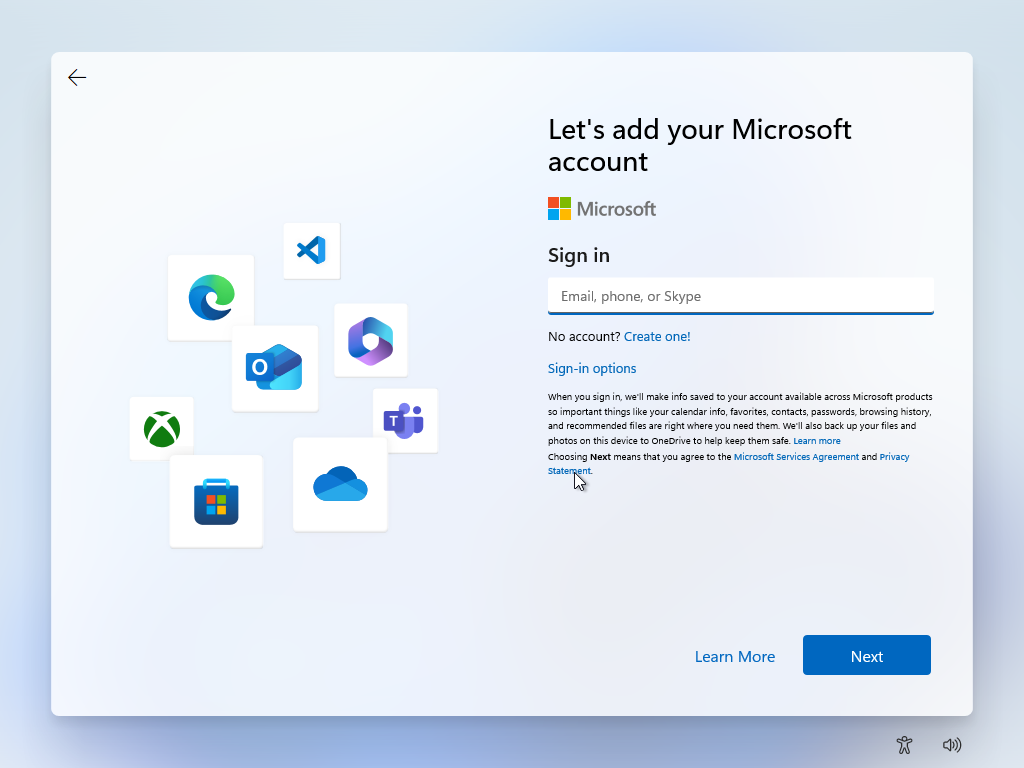
πατήστε SHIFT+F10.
Θα ανοίξει το command prompt κι εκεί δώστε:
oobe\bypassnro
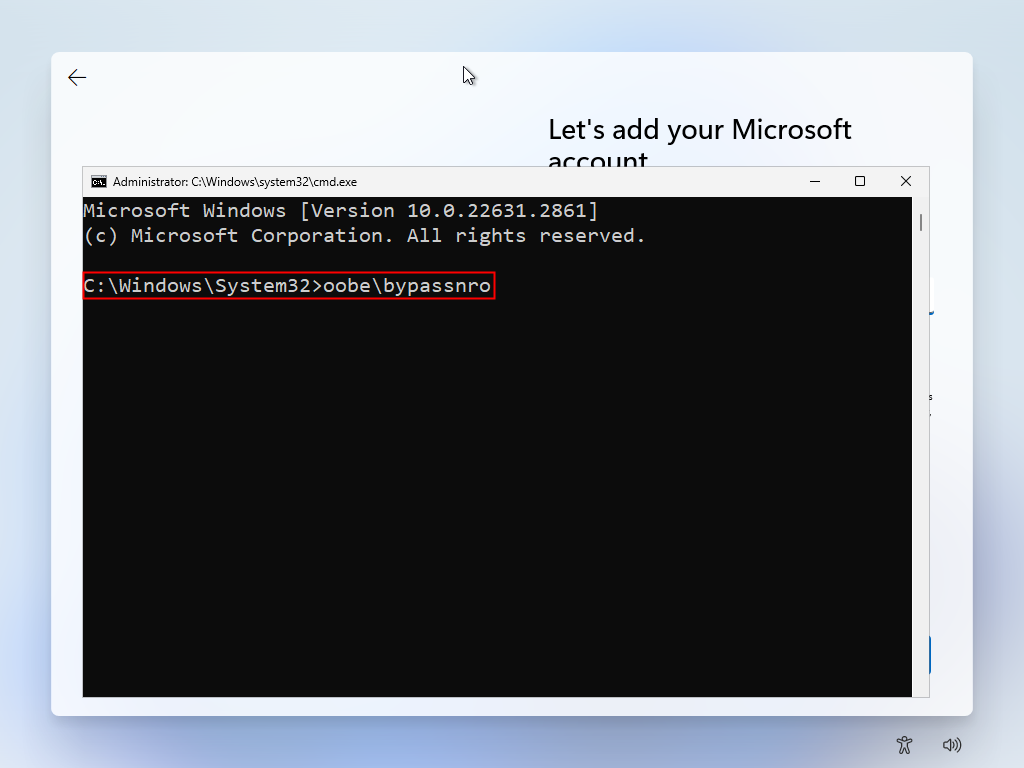
Θα κάνει restart και θα μπορέσετε να φτιάξετε τοπικό χρήστη
ή
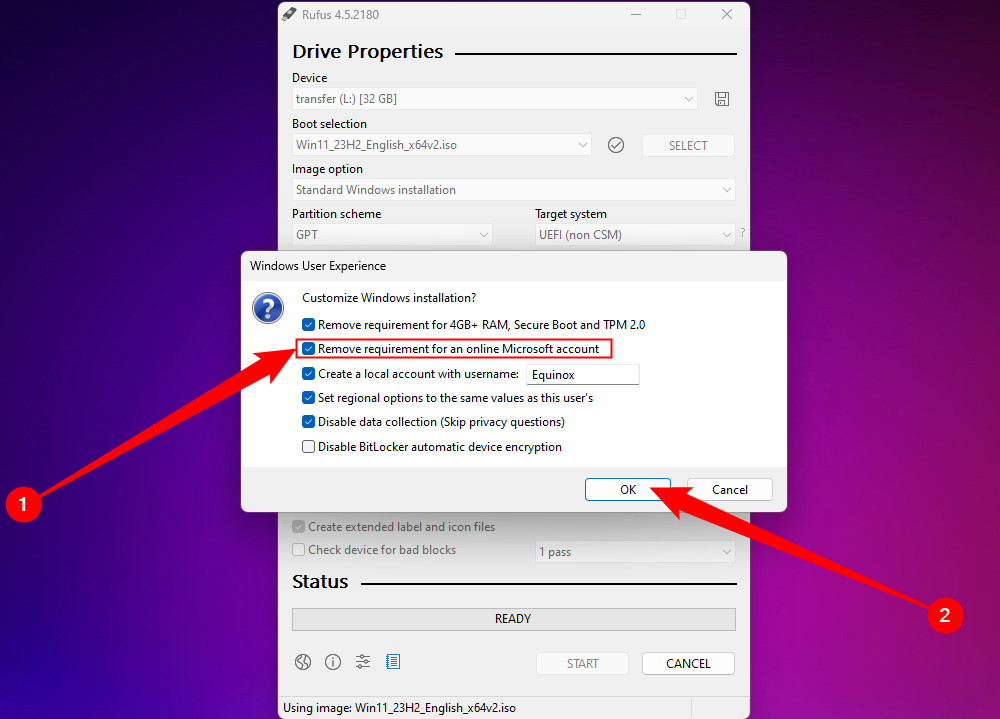
Στην δημιουργία USB με το Rufus, επιλέξτε να κάνει bypass την απαίτηση για Microsoft λογαριασμό
Comments